From Screen to Print: Getting Your Colors Right
April 21, 2026
Understanding RGB vs. CMYK vs. PMS Color
Color is one of the most important parts of any print project, yet it is also one that is often misunderstood. What looks perfect on your screen can shift, dull, or change entirely once it hits print.
Understanding how color translates from screen to print is the key to getting consistent, predictable results. In this blog, we break down the differences between RGB, CMYK, and PMS colors, along with some practical tips to help you avoid the most common color issues we see every day.
Choosing the correct color mode is the foundation of accurate color reproduction.
| Color Mode | Best For | How it Works | Key Limitation |
| RGB | Screens (web, mobile, digital displays) | Uses Light (Red, Green, Blue) to create color | Not reliable for print output |
| CMYK | Digital & large-format printing | Uses Ink (Cyan, Magenta, Yellow, Black) | Smaller color range than RGB |
| PMS (Pantone) | Brand-critical color matching | Uses standardized spot-color formulas | Requires proper setup and interpretation |
Why Doesn’t RGB Translate Well to Print?
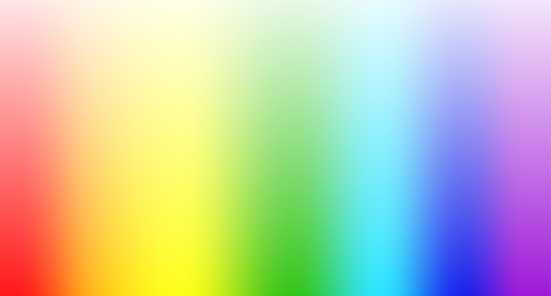
RGB is designed for screens, where color is created using light. This allows for brighter, more vibrant colors.. especially in blues, greens, and neons.
When you convert RGB to CMYK for printing, those colors must be recreated using ink. This results in a smaller color gamut, meaning some colors simply cannot be reproduced exactly as they appear on screen.
Why is CMYK the Print Standard?
CMYK is the default for most print processes because it reflects how ink interacts with physical materials. Designing in CMYK from the start gives you a more realistic preview of your final output.
Where Does Pantone (PMS) Fit In?
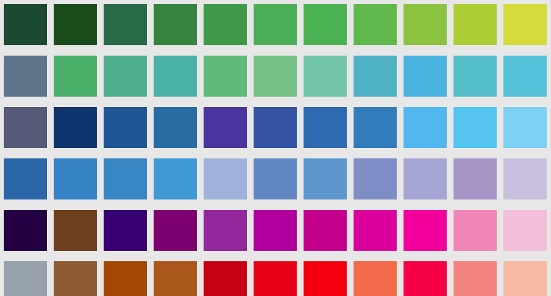
Pantone colors are standardized and designed for consistency. They are often used for brand colors where accuracy matters most. However, even Pantone colors are ultimately interpreted through printers and materials, so setup still matters.
Practical Color Tips for Better Print Results
Even when using the correct color mode, how you build and prepare your file has a major impact on the final result.
RGB
- Avoid designing in RGB for print projects whenever possible
- Expect noticeable shifts in bright or saturated colors
- Convert to CMYK early to control how colors adjust

CMYK
- Be mindful of total ink coverage, especially for large format applications
- Request a printed proof when color accuracy is critical
Pantone (PMS)
- Use Pantone colors for brand consistency and repeatability
- Ensure colors are properly defined, not just visually matched
- Clearly communicate expectations if exact color matching is required
Pantone C vs. U
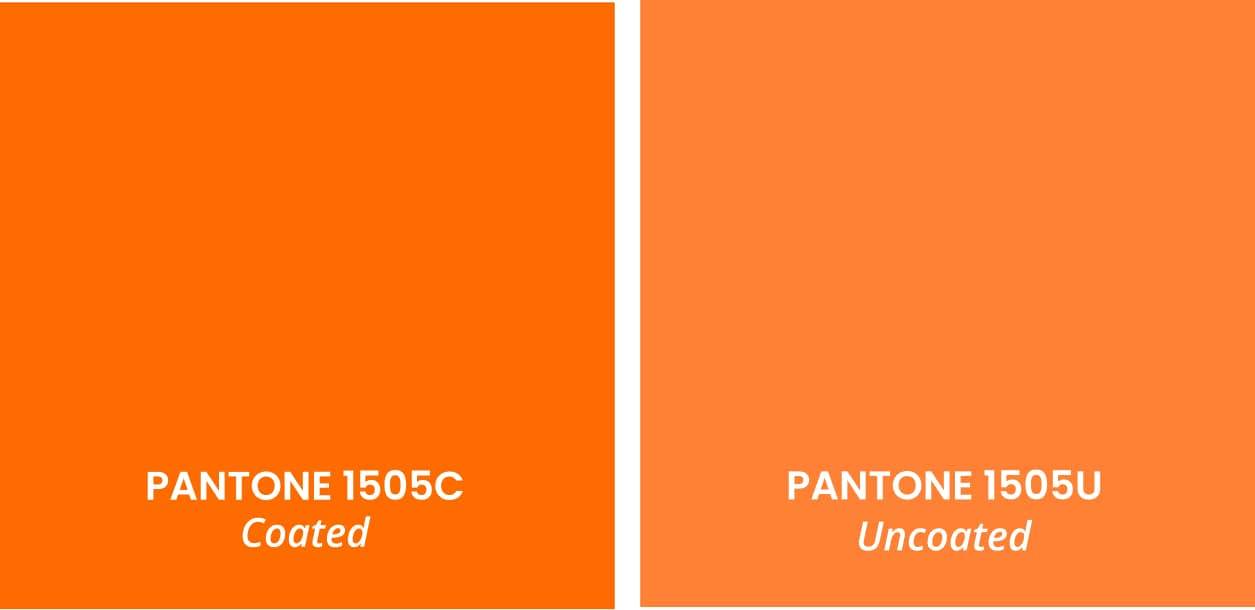
One of the most common color mistakes we see is the assumption that Pantone “C” (Coated) and “U” (Uncoated) colors are interchangeable.. They are not.
Pantone assigns different LAB values to coated and uncoated versions of the same color. That means:
- PMS 220 C and PMS 220 U are technically different colors, and will print different
- RIP software (like Caldera) interprets them differently
- The printed result will vary—even if the number is the same
In our workflow, we typically match to coated (C) Pantone values. These tend to be more saturated, more consistent across materials, and closer to what most customers expect visually.
Best Practice:
- Use Pantone “C” colors whenever possible
- Avoid mixing C and U colors in the same file
- If a “U” color is intentional, clearly note it in your job specifications
Most inconsistencies we see with Pantone colors come down to this exact issue, so getting it right upfront makes a significant difference in the final result.
Printing “True Black”
The Problem -
Another common issue in print files is black that doesn’t look fully black. Using 100% K (black only) often results in a color that appears faded, grayish, and lacking depth. This is especially noticeable in large solid areas.
The Solution -
If your artwork includes black that needs to print as a clean, neutral, and consistent black, it should be set up as a spot color named “Rich Black.” Other black builds can appear tinted or inconsistent due to variations in the print process and cannot be color guaranteed.
Black Print File Setup Requirement -
To achieve a true, rich black in print, all areas intended to appear black should be built using a spot color named “Rich Black.”
Why this matters: Differences in materials, ink sets, printer profiles, and RIP software can all impact how black reproduces. When black is built using other methods, it may shift in tone, resulting in a finish that looks faded, gray, or slightly tinted instead of deep and neutral.
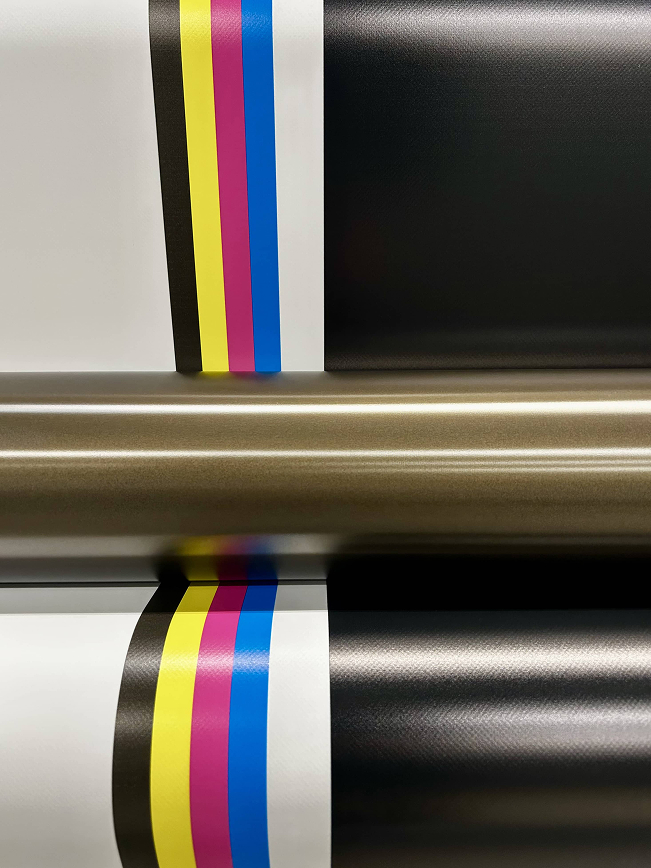
Accurate color in print comes down to good preparation. By understanding how RGB, CMYK, and Pantone colors behave, and by setting up your files correctly, you can avoid the most common pitfalls and get results that align with your expectations.
If color accuracy is critical to your project, we always recommend reviewing your files against our guidelines or reaching out for a proof before production.